
IT’S ALL ABOUT THE HIGHLIGHTS. GET THE BEST RESULTS BY FOLLOWING THIS GUIDE.
Learning a new editing tool, especially one that makes your life easier, should also be easy. Here are a few things you should know in order to really make beautiful reels that mesmerize coaches and bring the heat.
CAPTURE THE ACTION
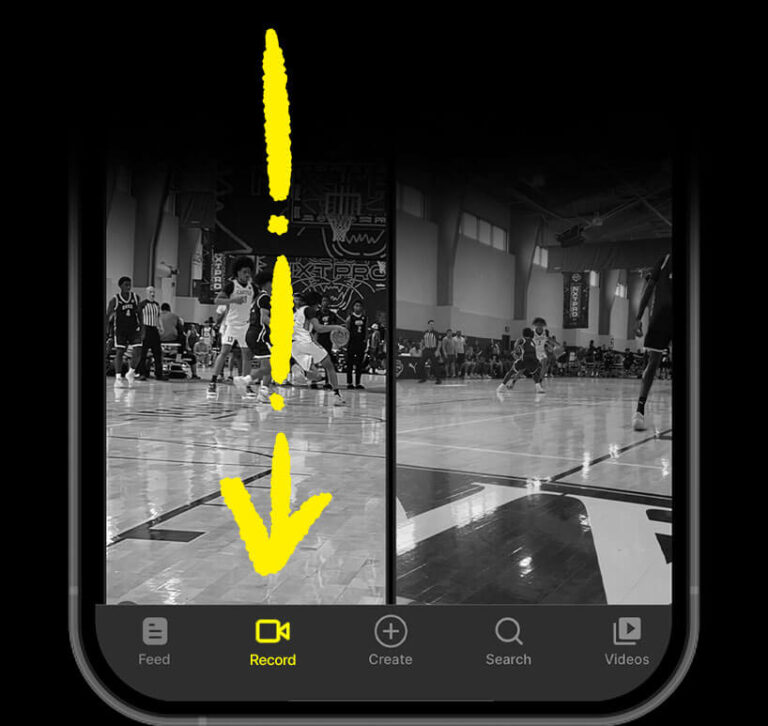
Athlete.AI makes it simple to record or import your videos.
To start recording your highlights, simply tap the Record button.
Alternatively you can tap the Create button and select, “Record Highlights”.
BEFORE YOU RECORD, SET THE STAGE
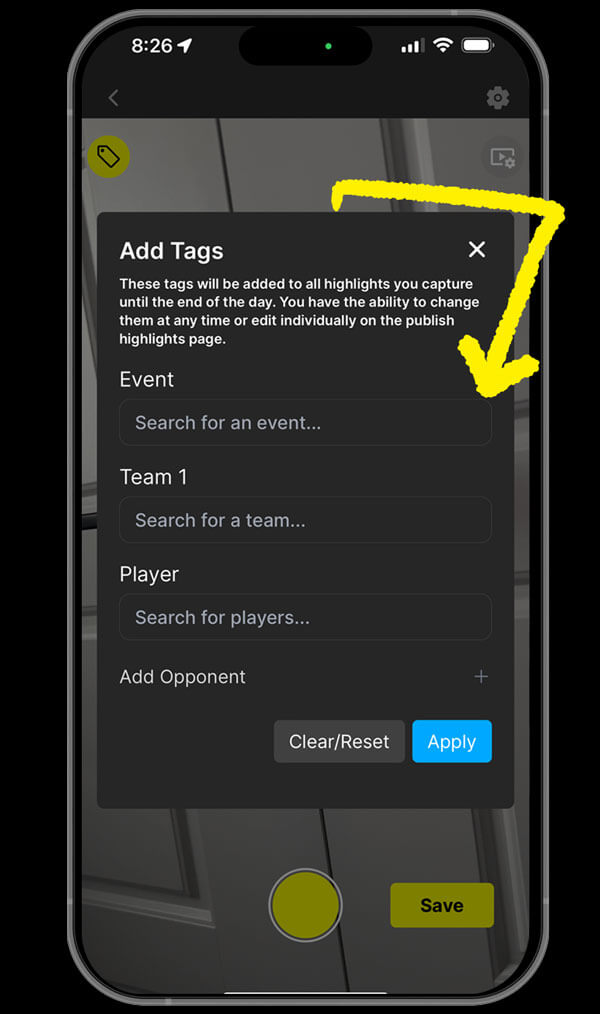
If you want your highlights to show up for the Event, Team, Player, or fans following them, make sure to tag your recording. Just fill out the Tags section before you hit record — choose the Event, Team, Player, or any combo you’re capturing.
EVENT
If you want to add your highlights to a specific event, find your event by typing the name of the event. Once you start typing, the results will appear in the list.
TEAM 1
To find your team, just start typing the team name in the search bar. If it’s already been created, it’ll pop right up.
PLAYER
Heads up — your player won’t show up in search until they’ve created their own account.
Once they’ve set up a player profile, you’ll be able to find their name and tag them in your highlights — helping them build their story, one play at a time.
SAVE YOUR SETTINGS
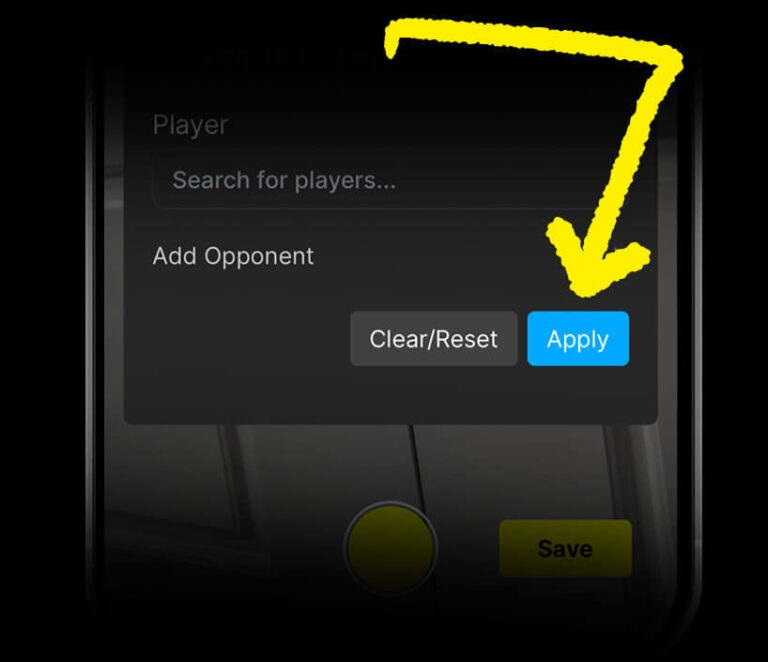
Tap the blue “Apply” button to save your settings.
NOTE: If you have already had these fields filled out and want to reset them to, press the grey Clear/Reset Button.
PRESS RECORD!
Once you have set your tags, press the yellow “Record” button at the bottom of your screen to start recording.
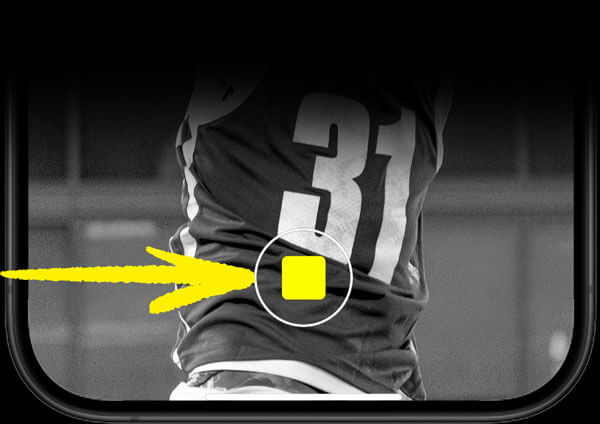
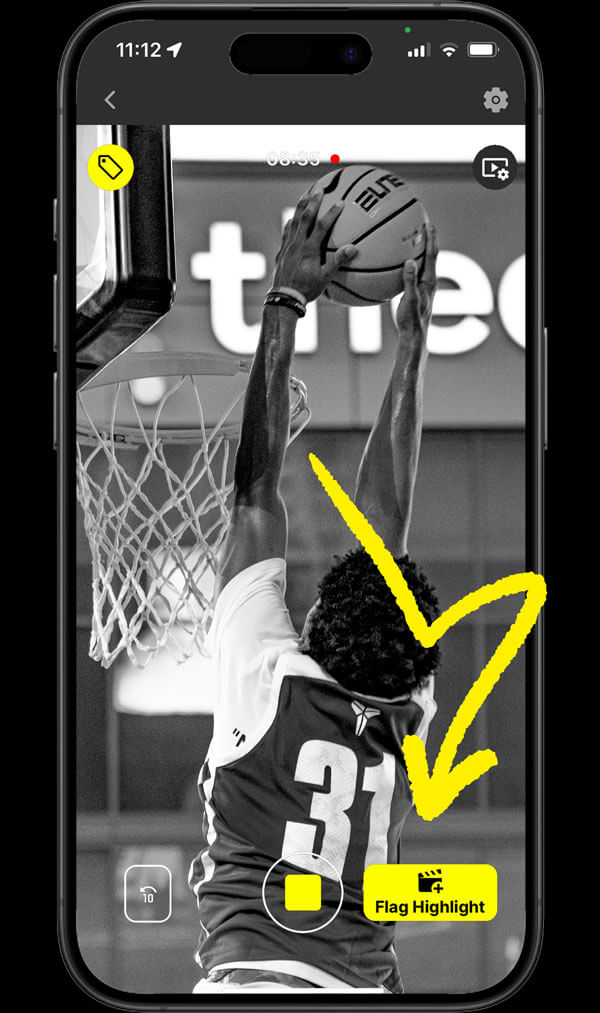
RECORD AND TAP “FLAG HIGHLIGHT” ANYTIME YOU WANT TO SAVE A PLAY
KEEP THE VIDEO ROLLING
RECORD AND CAPTURE ALL OF THE PLAY TIME, ONLY PAUSING IT WHEN THERE IS A BREAK OR YOUR ATHLETE ISN’T PLAYING.
Once you hit “Record”, the Athlete.AI camera is always rolling — and when the big play happens, tap the yellow “Flag Highlight” button.
WHEN YOU TAP “FLAG HIGHLIGHT” YOUR CLIP WILL BE SAVED TO YOUR LIBRARY.
- The app will only save the last 7, 10, 15, or 30 seconds of action when the “Flag Highlight” button is pressed, instead of the whole clip.
LEVEL UP YOUR HIGHLIGHT GAME
The app will only save the last 7, 10, 15, or 30 seconds of action, instead of the whole clip.
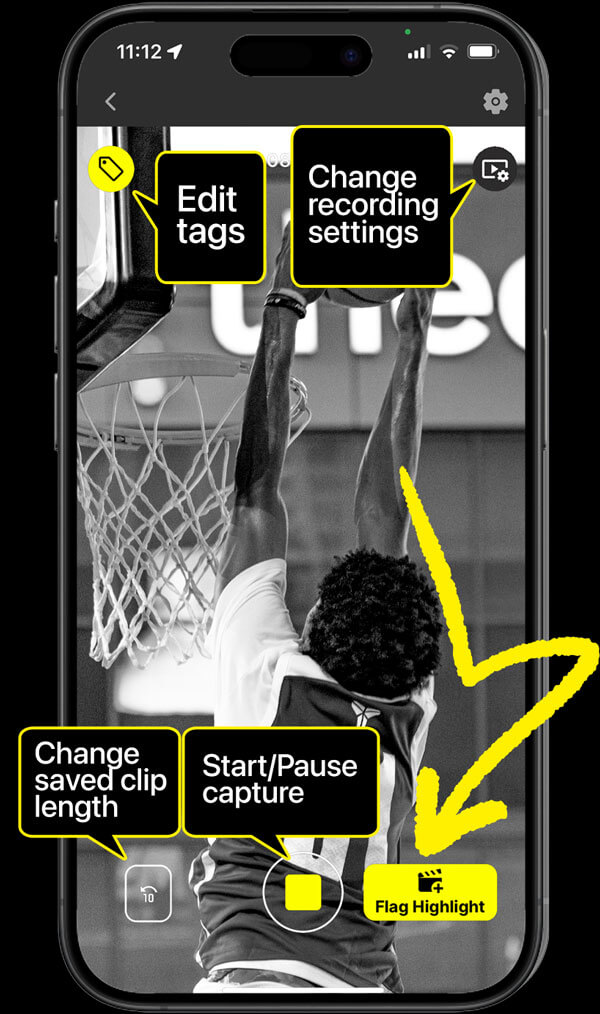
Change the capture length anytime by tapping the numbered icon in the bottom left of your screen.
The camera shoots in HD at 30 or 60 frames per second. Select 60 frames if you want slow-motion replays.
At a break in the action tap the yellow “Record” button to stop the capture. Hit “Save” to review your flagged clips, edit tags, and delete the misses.
WHEN THE GAME ENDS, YOUR FLAGGED HIGHLIGHTS ARE READY TO GO
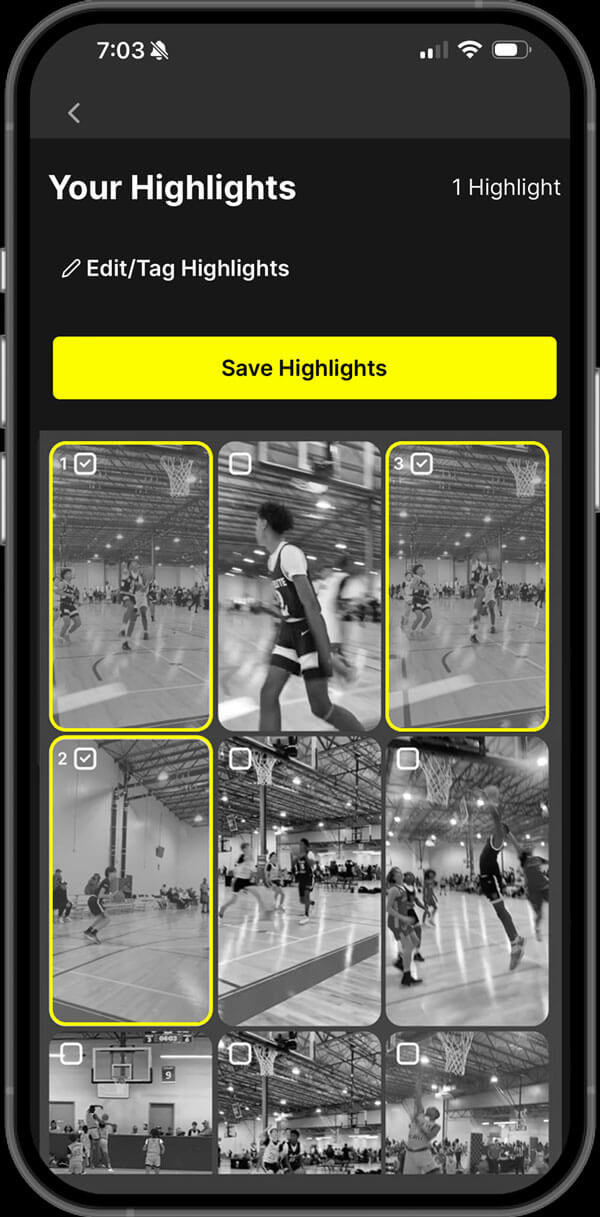
Hit “Save” to review your flagged clips, edit tags, and delete the misses.
Now, hit “Save Highlights” and all your highlights will drop straight into your profile and their tagged feeds. All your highlights appear in chronological order under the “Highlights” tab.
EVERY PLAY TELLS A STORY, AND EVERY ATHLETE DESERVES TO HAVE THEIR STORY TOLD.
Open the app, hit record, and start flagging the moments that matter most. Your athlete’s story is waiting to be told — let’s make it unforgettable.